Connect in Claude: one click, no API key
For the Claude Desktop app (the Chat and Cowork tabs) no API key is required. You add a connector and sign in once by email. With the first connection 50 free credits are active. The screenshots show the German Claude interface.
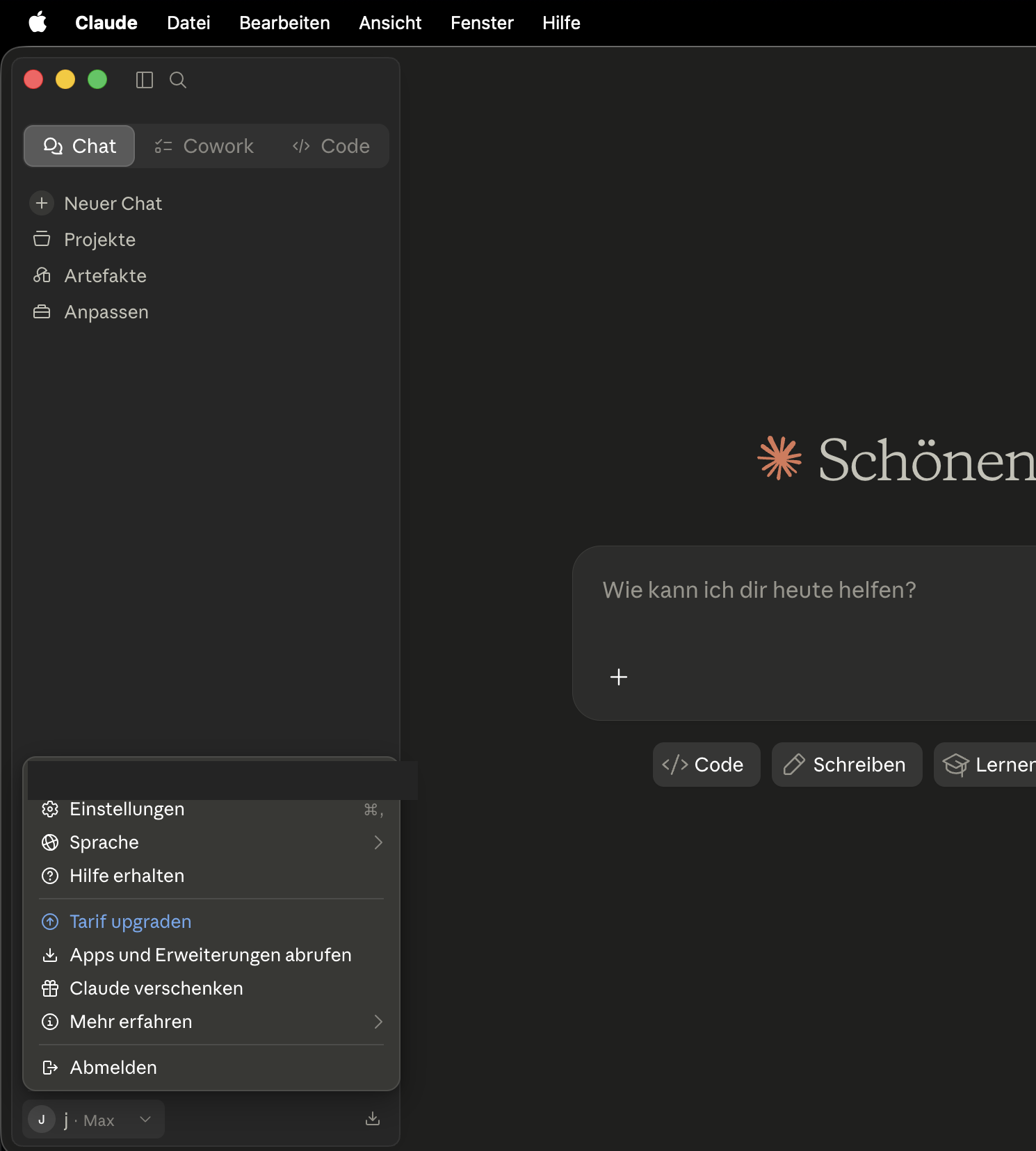
1 Open settings
Click your own name at the bottom left, then Settings.
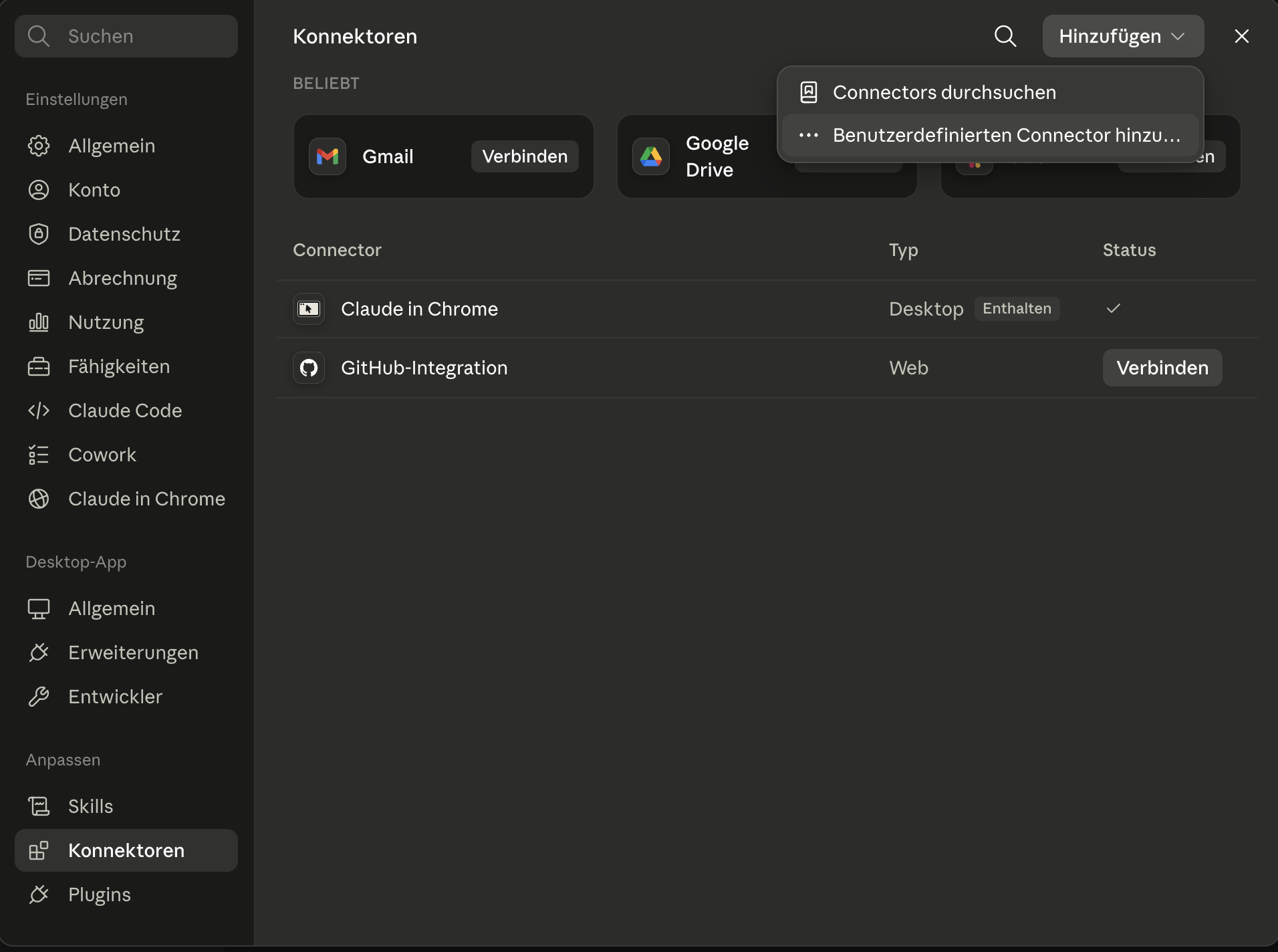
2 Add a connector
Open Connectors on the left, click Add at the top right, then Add custom connector.
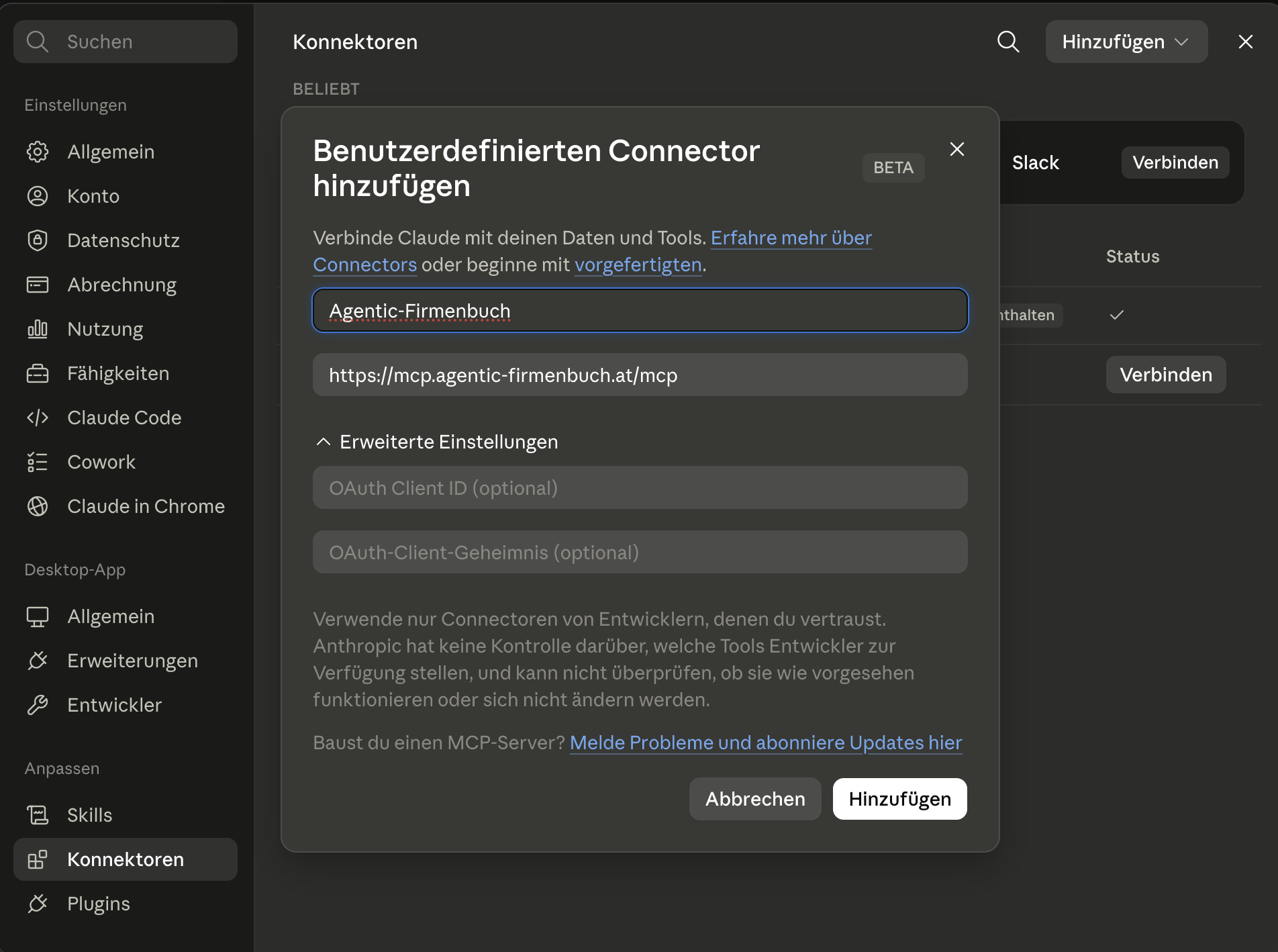
3 Enter name & address
Enter Agentic-Firmenbuch as the name and
https://mcp.agentic-firmenbuch.at/mcp as the address, then choose
Add. Leave the OAuth fields empty.
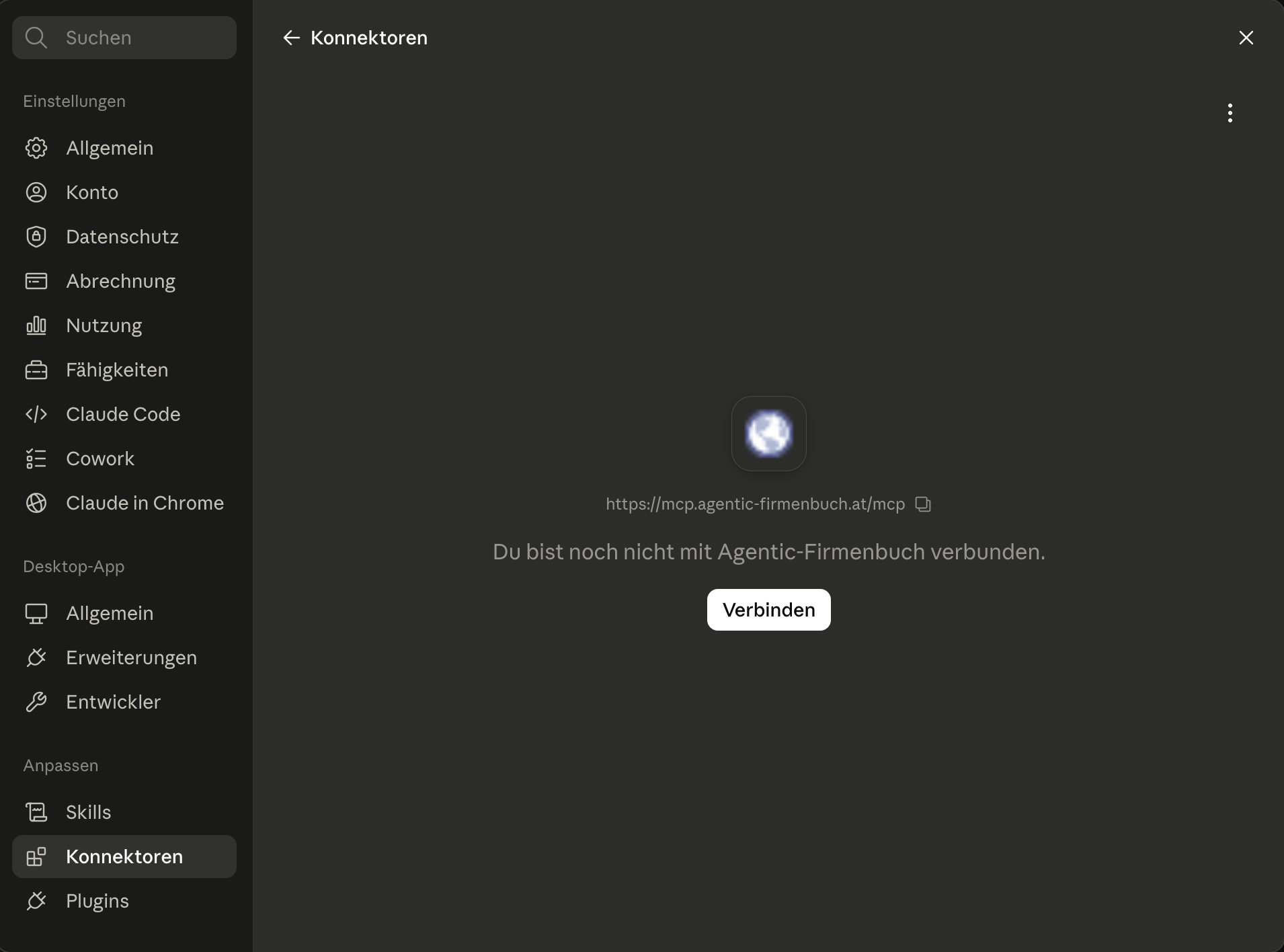
4 Start in chat: confirm the connection
The connector is now added; there is no separate "Connect" button. In a new chat, ask a company-register question (or activate Agentic-Firmenbuch). On first use Claude asks once to connect, then a browser tab opens for sign-in.
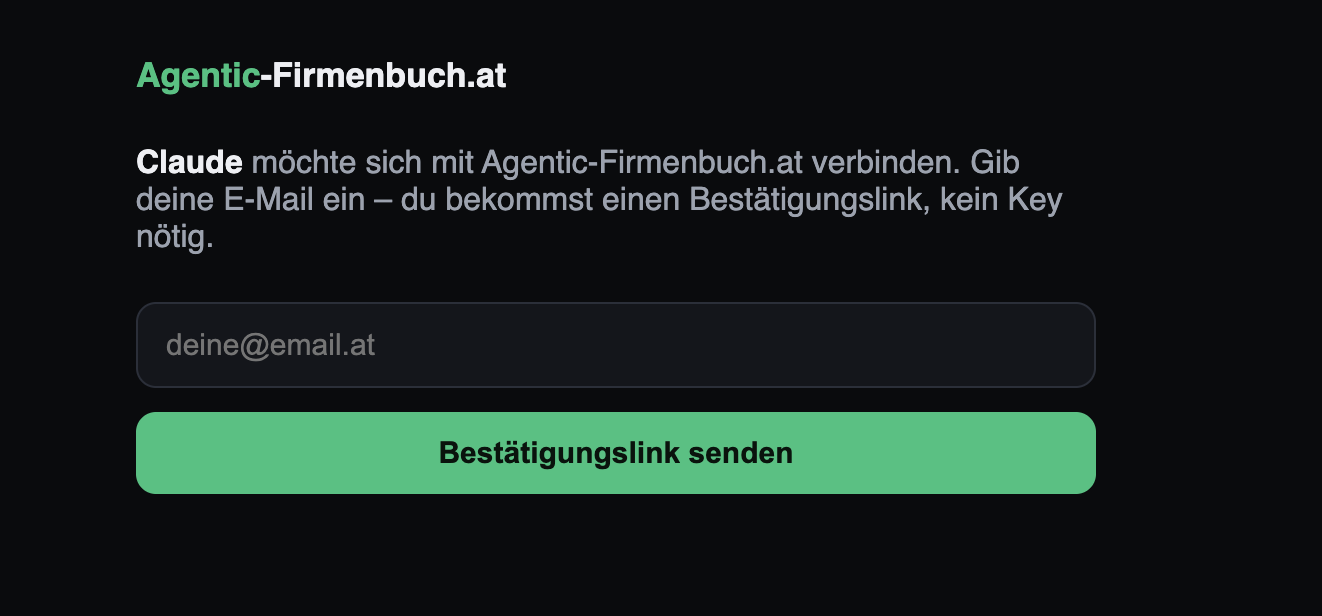
5 Confirm by email
In the browser, enter your email address and choose Send code. Then type the 6-digit code from the email into the open window, and the connection is established. No API key, no password.
✓ Test it
In a new chat, ask a question such as "Are you connected to Agentic-Firmenbuch and which tools are available to you?" If the agent names the company-register tools (search companies, financials, history …), the connection is active.